1
Starting point
Online STL repair
Upload or describe the STL issue in a focused workspace
Manual mesh editing
Open the model in a desktop mesh editor
STL mesh cleanup
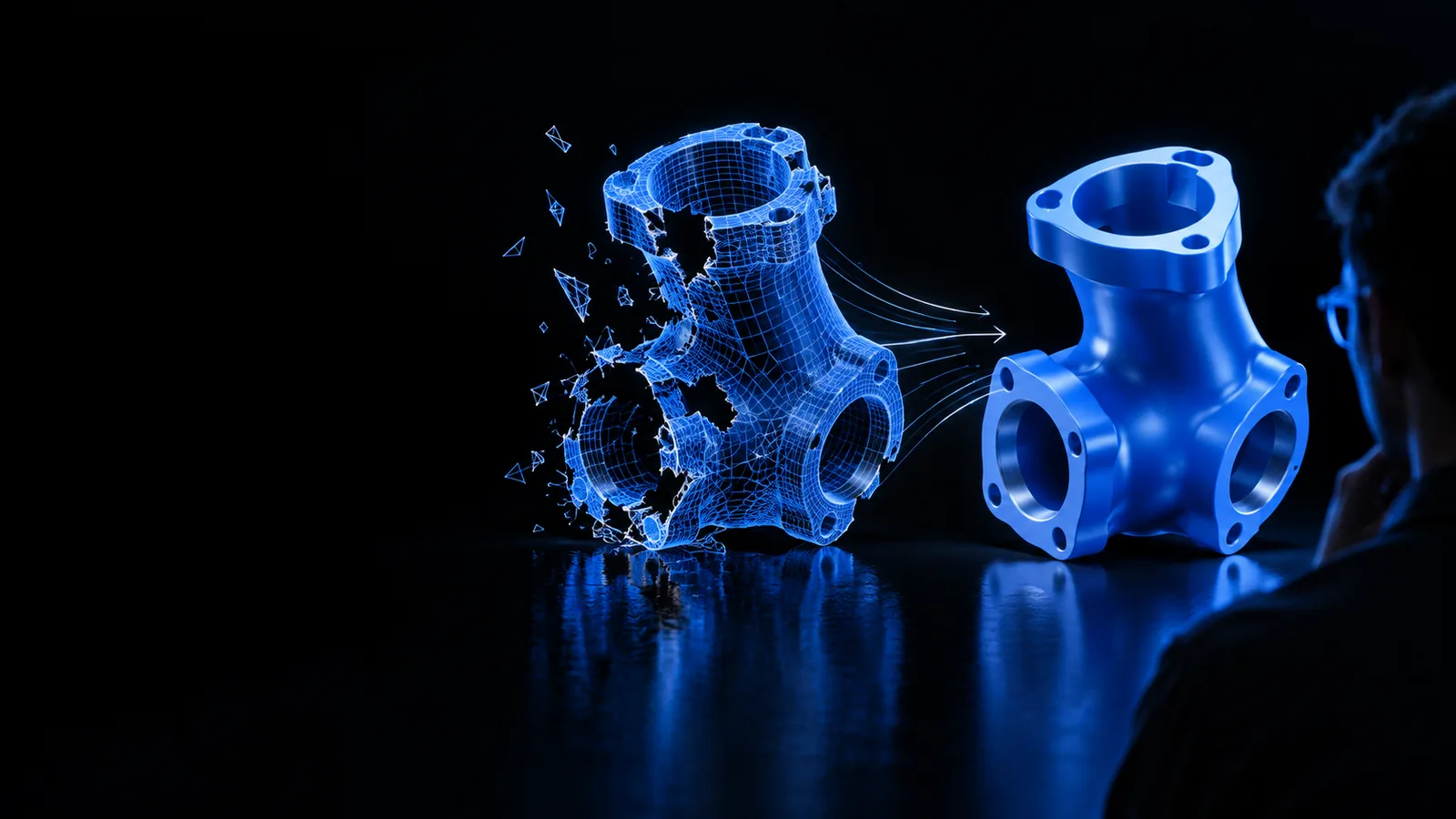
A stl repair service online can help you inspect common mesh problems before a model reaches slicing or production. Start with the file issue you can see, then use the repair workspace to review a more usable result.
One clear value
Online repair is most useful when you need a focused way to identify mesh defects, understand what changed, and prepare the model for the next tool in your workflow.
Online STL repair
Upload or describe the STL issue in a focused workspace
Manual mesh editing
Open the model in a desktop mesh editor
Online STL repair
Common defects such as holes, open shells, and non-manifold edges
Manual mesh editing
Broad access to topology, sculpting, and modeling tools
Online STL repair
Browser-based handoff with the repair task defined first
Manual mesh editing
Software installation, file import, and workspace setup
Online STL repair
A quick inspection or repair pass on an existing STL
Manual mesh editing
Detailed redesign or complex topology changes
Online STL repair
Check the repaired mesh before slicing or sharing
Manual mesh editing
Inspect layers, normals, and topology manually
Online STL repair
Continue with printing, testing, or additional editing
Manual mesh editing
Export from the editor and validate in another tool
Three repair routes
The same mesh defect can create different downstream problems. Choose the route that matches the person responsible for the file and the result they need.
A downloaded STL looks acceptable in the viewer but produces warnings during slicing.
Use the repair workspace to investigate holes, open shells, and edge issues before committing to a print.
inspect a print-ready STLA prototype export has inconsistent surfaces after several CAD revisions.
Create a focused repair pass, then return the cleaned mesh to the review or prototyping workflow.
review a prototype meshA scanned object contains gaps or disconnected regions that need attention before use.
Identify the visible defects first and decide whether an automated repair is enough for the intended application.
check a scanned modelSeveral people need a consistent way to hand off STL files for production checks.
Use a repeatable online step to screen model condition before slicing, machining, or sending files onward.
start a shared STL checkBefore you upload
A repair pass improves a mesh only when the source file and the intended result are understood. Keep these requirements visible before you begin.
The repair workflow needs a source model to inspect.
The right level of repair depends on the next use.
Not every opening or thin wall should be closed.
A repair suggestion should not replace your own model check.
This makes comparison and rollback easier.
Additional validation may be appropriate for production work.
Choose your workflow
Use the panel that best matches your current task. Each route keeps repair separate from the final decision about whether the model is ready to use.
Start by describing the warning or visible defect you need to investigate. After the repair pass, inspect the shell, face direction, and overall form in your normal slicing workflow before printing.
Treat the online repair step as a focused cleanup between export and review. Compare the repaired result with the source so that a technical correction does not hide a meaningful design change.
Scans often need judgment as well as repair. Use the workspace to identify gaps, disconnected regions, or inconsistent surfaces, then decide whether the resulting mesh is suitable for measurement, visualization, or fabrication.
Next step
Describe the issue, review the model, and decide what happens next with the repaired mesh. The workspace gives you a practical starting point without requiring you to explain the entire modeling history first.
Common questions
It is a browser-based workflow for checking and addressing common problems in an STL mesh. Typical issues include holes, open shells, inverted faces, and non-manifold edges.
An online workflow is designed to reduce setup between noticing a problem and beginning an inspection. The actual review time depends on the file, the defect, and how carefully the repaired result must be validated.
The available service terms depend on the workspace you open and the current product flow. Review the destination before relying on it for a particular project or production requirement.
Check that the repaired areas match the intended shape and that no important openings, thin walls, or details were altered. For printing, also confirm the model in your slicer before starting the job.